“The reason behind this is for me the Developer to have a resource to look back on later for future projects without having to go into UnrealEngine old projects. I am using a form of Chat GPT and Personal Research from internet and forums and friends to help guide me along the way. “
-Grant Hunter Alward
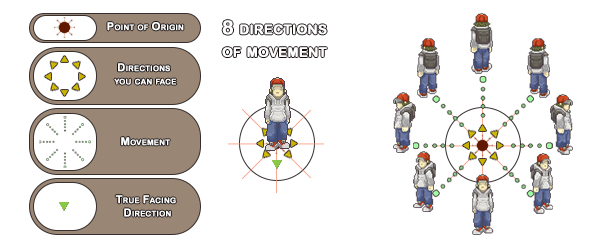
RoundYawto45Degrees Function: Is intended to give 8 degrees of movement and a feeling of more classic movement in the PlayStation era of gaming. I am attempting to modify the Navmesh Point and click style of gameplay in Unreal Engine to suite my needs and hopefully this is a successful attempt. I have only found input methods for the 8 degrees of movement and not one that made sense for natural movement on Navmesh so I am documenting it here.
Concept: Using Navmesh and Right Left Mouse click i want to create a function that with change a sprite depending on the Direction it moves along and away from the camera (live current position).
Criteria:
-8 Directions of sprite angles
-Camera will change sprite if moved
-sprites change depending on facing direction of actor
——————————————————————————————
- Open Your Blueprint:
- Open the Blueprint where you want to create this custom function.
- Add a Function:
- Right-click on the Graph, go to “Functions,” and select “Add Function.” Name it “RoundYawTo45Degrees.”

- Right-click on the Graph, go to “Functions,” and select “Add Function.” Name it “RoundYawTo45Degrees.”
- Add Input Parameter:
- Inside the function, click the “+” button to add a new input parameter. Name it “Yaw” and set the type to Float.

- Inside the function, click the “+” button to add a new input parameter. Name it “Yaw” and set the type to Float.
- Create Local Variables:
- Right-click in the graph and create two local variables:
- “RoundedYaw” (Float)
- “Remainder” (Float)
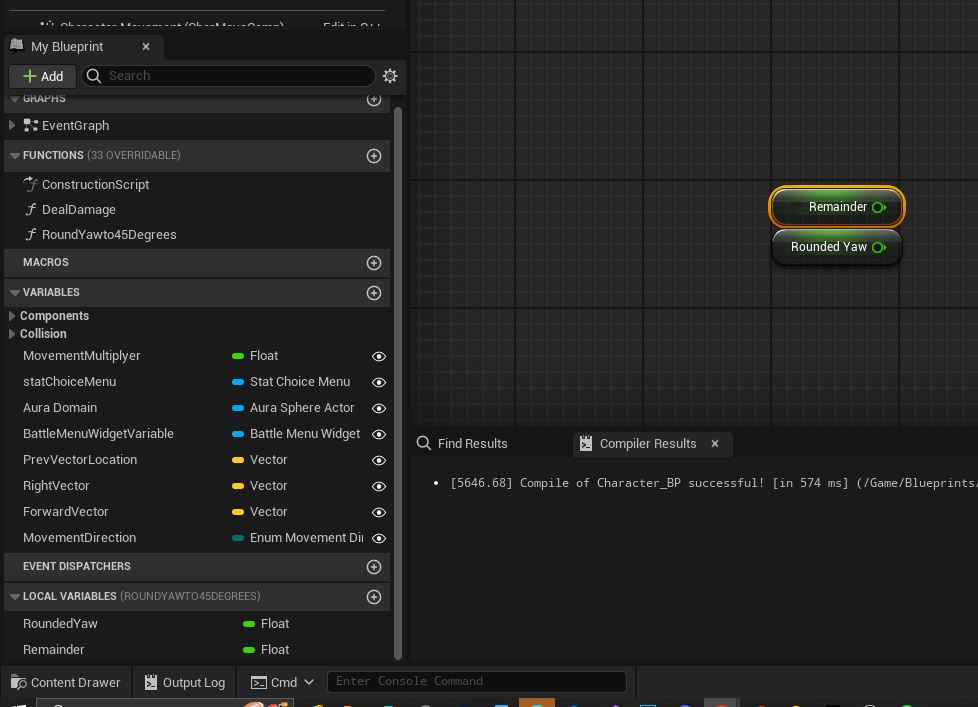
- Right-click in the graph and create two local variables:
- Float Mod Node:
- Drag off the “Yaw” input and add a “Float Mod” node (find it by typing “Mod” in the context menu). Connect the “Yaw” to the “Dividend” input and set the “Divisor” to 45.
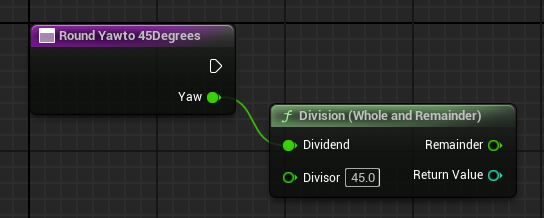
- Drag off the “Yaw” input and add a “Float Mod” node (find it by typing “Mod” in the context menu). Connect the “Yaw” to the “Dividend” input and set the “Divisor” to 45.
- Set “Remainder” Variable:
- Connect the result of the “Float Mod” to the “Remainder” variable.

- Connect the result of the “Float Mod” to the “Remainder” variable.
- Branch Node:
- Add a “Branch” node from the context menu.

- Add a “Branch” node from the context menu.
- Comparison Operations:
- Connect the “Remainder” to both the True and False pins of the Branch node.
- Add two “Equal” nodes (find them by typing “Equal” in the context menu). Connect one to 0 and the other to 45 / 2 (22.5). Connect these to the True and False pins of the Branch node.

- Select Node:
- Add a “Select” node from the context menu. Connect the output of the “Equal” nodes to the A and B inputs of the Select node, respectively.

- Add a “Select” node from the context menu. Connect the output of the “Equal” nodes to the A and B inputs of the Select node, respectively.
- Set “RoundedYaw” Variable:
- Connect the result of the Select node to the “RoundedYaw” variable.

- Connect the result of the Select node to the “RoundedYaw” variable.
- Return Node:
- Add a “Return” node from the context menu. Connect the “RoundedYaw” to the output of the Return node.

- Add a “Return” node from the context menu. Connect the “RoundedYaw” to the output of the Return node.
Now you've created a basic function that rounds the Yaw to the nearest multiple of 45 degrees. Remember to compile and save your Blueprint. You can then use this function in other parts of your Blueprint to obtain a rounded Yaw value for your actor's rotation.


Leave a Reply